What Is Screen Recording & Tutorial Creation Tools?
In the modern enterprise, these tools serve as the operational bridge between complex digital processes and human understanding. They are used by product managers to demonstrate features without scheduling meetings, by support agents to resolve tickets through visual proof rather than text-based back-and-forth, and by L&D teams to scale training without repetitive live sessions. As remote and hybrid work models solidify, this category has evolved from simple utility software into a critical layer of the enterprise communication stack, replacing synchronous meetings and static PDF manuals with high-fidelity, reproducible visual assets.
History
The evolution of screen recording technology traces the shift from static desktop computing to the dynamic, collaborative cloud era. In the early 1990s, the market was defined by utilities like Lotus ScreenCam (released circa 1993-1994). These early tools were engineered to solve a specific gap: the inability to demonstrate software functionality without being physically present. ScreenCam introduced the concept of "screen movies," capturing cursor movements and screen updates to create executable tutorials. However, these solutions were strictly local, proprietary, and plagued by large file sizes that made distribution via physical media or early intranets cumbersome.
The 2000s marked the "Desktop Authoring" era. As internet bandwidth improved, tools emerged that allowed for non-linear editing, multi-track audio, and export to standardized formats like Flash (SWF) and later AVI/MP4. This period saw the rise of heavy-duty desktop applications designed for instructional designers and technical writers. The focus was on high-fidelity production values—zoom-and-pan effects, callouts, and cursor smoothing—transforming screen capture into a post-production workflow similar to video editing. However, the workflow remained siloed: record locally, edit locally, render locally, and then upload to a separate server.
The 2010s disrupted this model with the advent of "Vertical SaaS" and cloud-native recording. The gap that drove this innovation was the inefficiency of the render-and-upload cycle in a fast-paced agile environment. Browser-based extensions and cloud-first platforms eliminated the rendering step, generating instant shareable links immediately after recording. This shifted the buyer expectation from "give me a video editor" to "give me instant communication." This era also saw the category bifurcate: sales teams adopted video for prospecting, while engineering teams adopted specialized recorders that captured code-level metadata alongside video.
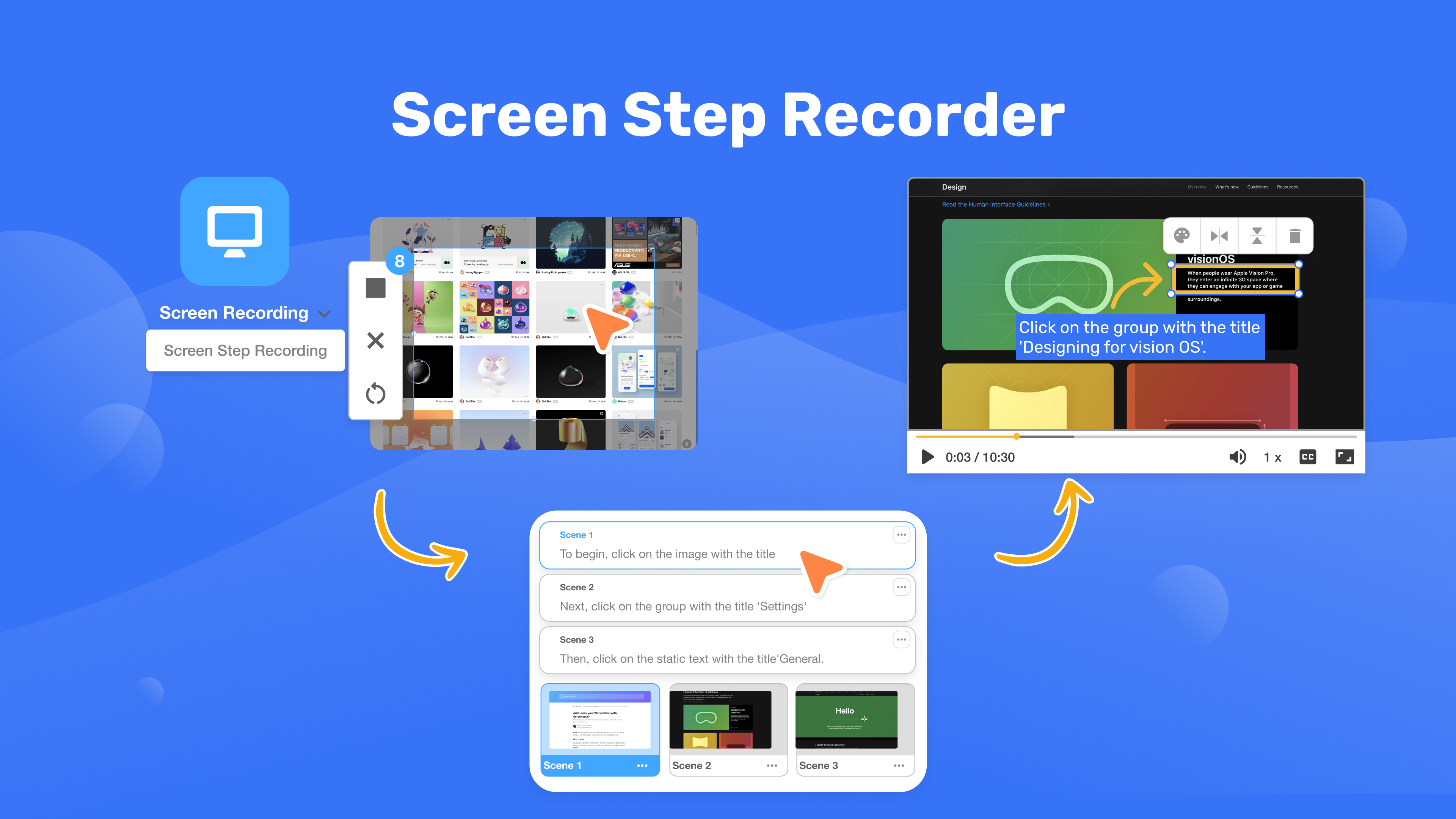
By the 2020s, the market entered its current "Intelligence and Automation" phase. Consolidation waves saw large collaboration platforms and enterprise service management vendors acquiring standalone video tools to integrate asynchronous communication directly into ticketing and project management workflows. Today, the expectation has evolved again: buyers no longer just want a video file; they demand "actionable intelligence"—tools that automatically transcribe audio, generate step-by-step written documentation from a video, and use AI to redact sensitive data or synthesize voiceovers, fundamentally blurring the line between video creation and document generation.
What To Look For
Evaluating Screen Recording & Tutorial Creation Tools requires moving beyond basic capture capabilities—which are now commoditized—and focusing on workflow fit, metadata intelligence, and enterprise governance. The most critical evaluation criterion is the time-to-value ratio for the content creator. Buyers must assess how many steps exist between hitting "stop" and sharing a finished, compliant asset. Tools that require manual uploading, rendering, or extensive post-production for simple tasks often fail to achieve adoption in fast-paced teams.
Red flags in this category often appear in data handling and proprietary lock-in. Be wary of vendors that do not offer clear data retention policies or bulk export capabilities. A significant warning sign is a lack of granular privacy controls; if a tool defaults to making all recordings public or organization-wide without requiring specific user permissions, it poses a severe security risk. Additionally, avoid tools that rely heavily on proprietary file formats for editing, as this creates a dependency that makes future migration effectively impossible.
When vetting vendors, buyers should ask specific, probing questions regarding infrastructure and AI usage. Key questions include: "Does the platform process video, audio, and metadata (like DOM elements or console logs) on-device or in the cloud?" and "If AI is used for transcription or summarization, is customer data used to train your public models?" Furthermore, ask about the "staleness" lifecycle: "What automated mechanisms exist to flag, archive, or delete video content that has not been viewed in 6 months?" Effective lifecycle management is essential to prevent storage bloat and reduce the attack surface of outdated internal information.
Industry-Specific Use Cases
Retail & E-commerce
In the retail and e-commerce sector, screen recording tools are pivotal for reducing return rates and streamlining customer support. High-velocity support teams use these tools to request screen captures from customers to diagnose issues with checkout processes or account management without prolonged back-and-forth emails. A specific evaluation priority here is "zero-install" capability; retailers need tools that allow customers to record their screens via a simple browser link without downloading software.
Unique considerations for this industry involve handling PCI (Payment Card Industry) data. Tools selected for retail environments must have automated redaction features that can detect and blur credit card numbers or personally identifiable information (PII) on the fly. Furthermore, e-commerce merchandising teams use these tools to record competitor pricing and layout changes, requiring time-stamped, verifiable archival capabilities to track market trends over time.
Healthcare
Healthcare organizations utilize screen recording primarily for Electronic Health Record (EHR) training and compliance documentation. The specific need is to train clinical staff on complex software workflows without using live patient data. Evaluation priorities focus heavily on HIPAA compliance and the ability to sanitize recordings. Healthcare buyers must look for tools that offer "synthetic data replacement" or robust blurring to ensure no Protected Health Information (PHI) is inadvertently captured in training tutorials.
A unique consideration is the audit trail. In healthcare, it is often necessary to prove that a staff member watched a specific compliance tutorial. Therefore, screen recording tools must integrate deeply with Learning Management Systems (LMS) to pass back granular viewing data—not just "completed," but duration watched and engagement heatmaps—to satisfy regulatory training requirements.
Financial Services
Financial services firms deploy screen recording tools for "interaction verification" and rigorous audit compliance. Unlike other sectors where editing is a feature, in finance, the ability to produce an unaltered, tamper-evident record of a screen interaction (e.g., a trader executing a transaction or an advisor presenting a portfolio) is paramount. Evaluation priorities center on immutable storage (WORM compliance—Write Once, Read Many) and role-based access control (RBAC).
Unique considerations include FINRA and SEC regulations regarding electronic communications. Tools must support "legal hold" workflows where specific recordings can be locked and preserved indefinitely during investigations. Additionally, financial buyers often require on-premise or private cloud deployment options to ensure sensitive financial data never traverses public internet infrastructure.
Manufacturing
Manufacturing and industrial sectors use screen recording to bridge the gap between digital engineering (CAD/CAM) and shop floor execution. A critical workflow involves recording "digital twin" simulations or 3D model manipulations to create visual Standard Operating Procedures (SOPs) for assembly line workers. Evaluation priorities include support for high-frame-rate recording to capture detailed animations without lag and mobile-responsive playback for viewing on tablets in the factory.
A unique consideration is offline accessibility. Factory floors often have intermittent internet connectivity. Therefore, the chosen tools must allow for offline recording and viewing, with synchronization occurring once connectivity is restored. Furthermore, these tools often need to integrate with Manufacturing Execution Systems (MES) to link video instructions directly to specific work orders.
Professional Services
Agencies, consultancies, and legal firms use screen recording for asynchronous client reporting and "billable" transparency. Instead of scheduling a synchronous meeting to walk through a monthly analytics report or a contract review, consultants record a video walkthrough. The specific need is for high-polish, branded experiences that reinforce the firm's professionalism. Evaluation priorities include "white-labeling" capabilities—custom domains, branded video players, and the removal of vendor watermarks.
Unique considerations involve client-side security and expiration. Professional services firms need to share sensitive strategic documents via video links that can be password-protected, restricted to specific email domains, and set to auto-expire after a project concludes. Analytics are also crucial here; consultants need to know exactly when a client viewed a proposal video to time their follow-up effectively.
Integration & API Ecosystem
In the modern enterprise stack, a screen recording tool cannot exist as an island. The depth of its Integration & API ecosystem determines whether it accelerates workflows or becomes a bottleneck. Effective integration goes beyond simple "share to Slack" buttons; it requires bi-directional data synchronization where the recording tool can trigger actions in other platforms and vice versa.
According to a 2025 forecast by Gartner, "By 2028, 80% of developer productivity insight platforms will include workflow automation features," highlighting the critical need for tools to integrate seamlessly into existing engineering and support environments to drive value [1]. For a screen recording tool, this means the ability to push metadata—such as viewer engagement stats, ticket IDs, or bug logs—directly into systems of record like Salesforce, Jira, or an LMS without manual data entry.
Real-World Scenario: Consider a mid-sized professional services firm with 50 consultants using a project management tool (e.g., Asana) and a billing system. They implement a screen recording tool to provide weekly asynchronous status updates to clients. If the integration is poorly designed, the consultant must record the video, download it, upload it to a separate host, copy the link, paste it into the project task, and manually log the time in the billing system. This "swivel-chair" friction adds 10-15 minutes of non-billable administrative work per update. In a well-integrated ecosystem, the recording tool launches directly from the project task, automatically attaches the video to the client record upon completion, and triggers a webhook that logs the 5-minute duration as a billable activity in the invoicing software. The lack of this integration leads to thousands of dollars in lost billable time annually.
Security & Compliance
As screen recording tools capture sensitive internal data—from proprietary code to customer PII—security and compliance have become the primary gatekeepers for enterprise adoption. It is no longer sufficient for a vendor to simply claim encryption at rest; organizations now demand granular governance over content lifecycles and access observability.
A 2024 report by IBM on the cost of data breaches revealed that the average cost of a data breach in the healthcare industry reached nearly $9.8 million USD [2]. This statistic underscores the immense financial risk associated with unmanaged visual data. Video recordings are often "dark data"—unstructured and difficult to index—making them a prime vector for data leaks if not properly governed. Forrester analyst Alla Valente emphasizes the growing regulatory scrutiny on third-party applications, noting that organizations must know "if you're leveraging AI that is from a third party" and how that data is trained, which applies directly to AI-enabled screen recorders processing sensitive corporate video [3].
Real-World Scenario: A financial services company allows its support team to use a cloud-based screen recorder to troubleshoot client account issues. Without strict compliance controls, an agent records a session where a client's full account number and balance are visible. If the tool lacks automated PII redaction or "domain-restricted sharing," the agent might inadvertently share this link via a public channel or email. In a secure setup, the tool's DLP (Data Loss Prevention) integration would detect the numeric pattern of the account number and automatically blur it before the video is saved. Furthermore, "legal hold" policies would ensure that this specific interaction is preserved in a WORM (Write Once, Read Many) storage state for audit purposes, rather than being auto-deleted after 30 days like standard content.
Pricing Models & TCO
Understanding the Total Cost of Ownership (TCO) for screen recording tools requires navigating a complex matrix of per-seat licensing, storage overages, and feature-gating. The market has largely shifted away from perpetual licenses toward SaaS models, but the hidden costs often lie in "viewer" vs. "creator" distinctions and storage limits.
Gartner research highlights that shadow IT can account for 30% to 40% of IT spending in large enterprises, a figure that is particularly relevant to low-cost, freemium screen recording tools that individual employees expense on corporate cards, bypassing volume discounts and creating fragmented billing [4]. True TCO calculation must account for the administrative overhead of managing these disparate licenses versus a centralized enterprise agreement.
Real-World Scenario: Imagine a sales team of 25 representatives. A vendor offers a "Pro" plan at $15/user/month. On paper, the annual cost is $4,500. However, the plan caps video storage at 50 videos per user. A high-velocity sales rep might generate 50 prospect videos in a single month. Once the cap is hit, the organization is forced to upgrade to the "Business" tier at $30/user/month to unlock unlimited archiving, instantly doubling the TCO to $9,000. Furthermore, if the tool charges for "viewer" seats (e.g., managers who need to review calls for coaching but don't record), the cost creates friction where leadership is discouraged from using the platform. A savvy buyer would negotiate an "active creator" model where viewing is free and storage is pooled across the organization, rather than capped per user, smoothing out the usage spikes of top performers.
Implementation & Change Management
The success of a screen recording tool rollout is rarely determined by the software's features, but rather by the change management strategy used to encourage adoption. "shelfware"—software that is purchased but never used—is a massive risk in this category, as employees often revert to familiar habits like scheduling synchronous meetings or writing long emails.
According to McKinsey, organizations that focus on "superagency" and provide seamless integration into existing workflows see significantly higher adoption of new AI and digital tools. Their research indicates that 45% of employees believe seamless integration into existing workflows would increase their daily use of generative AI tools (which increasingly power modern screen recorders) [5]. Without a structured implementation plan that embeds the tool into the "flow of work," adoption stalls.
Real-World Scenario: A large enterprise rolls out a new screen recording platform to its 200-person customer success team to replace live onboarding calls. The IT team simply pushes the install via MDM (Mobile Device Management) and sends an email announcement. Three months later, usage is under 10%. Why? The agents were never trained on when to use the tool versus a live call, nor were they given templates for common scenarios. The "change management" failure here was ignoring the cultural shift from synchronous to asynchronous work. A successful implementation would have identified "champions" in each pod, created a library of "best practice" recordings (e.g., "The Perfect QBR Invitation"), and updated the support playbook to explicitly state: "For Tier 3 tickets, send a video response first." This operationalizes the tool, making it a required step in the process rather than an optional gadget.
Vendor Evaluation Criteria
Selecting the right vendor requires looking beyond the glossy marketing of "AI features" and scrutinizing the vendor's roadmap, stability, and support structure. In a market flooded with lightweight browser extensions, separating enterprise-grade partners from ephemeral startups is crucial for long-term viability.
Forrester emphasizes in their vendor evaluation methodologies that buyers must assess "current offering" against "strategy." For instance, in the privacy management space, they note that "privacy teams today are being asked to support connected governance... not just traditional compliance workflows" [6]. Similarly, for screen recording, the evaluation must weight the vendor's ability to support connected video workflows (integrations, APIs, AI governance) over simple capture quality.
Real-World Scenario: An L&D director at a manufacturing firm evaluates two vendors. Vendor A offers a sleek, modern interface and "viral" AI editing features but lacks a dedicated Customer Success Manager (CSM) and only offers email support. Vendor B has a slightly dated interface but provides a dedicated CSM, quarterly business reviews (QBRs), and a guaranteed 99.9% uptime SLA with financial penalties. While Vendor A's demo was impressive, the "evaluation criteria" reveals that Vendor A relies on a third-party API for its core video processing, introducing a supply chain risk. Vendor B owns its processing stack. For a mission-critical use case like safety training, where a video outage could delay factory floor onboarding, Vendor B is the superior choice despite the "boring" UI. The evaluation must prioritize infrastructure ownership and support SLAs over cosmetic innovation.
Emerging Trends and Contrarian Take
Emerging Trends (2025-2026): The screen recording category is rapidly converging with Agentic AI and Digital Adoption Platforms (DAP). We are moving away from "passive" video recording toward "active" process mining. In 2025-2026, expect tools that don't just record a video but simultaneously generate a coded script that an AI agent can execute. Gartner predicts that "by 2028, 15% of daily work decisions will be made by agentic AI," suggesting that screen recordings will serve as the "training data" for these agents rather than just content for human consumption [7]. Additionally, "Synthetic Localization" will become standard, where a single video recorded in English is automatically dubbed into Spanish, French, and Japanese with lip-syncing, eliminating the need for regional re-recording.
Contrarian Take: The standalone screen recorder is a dying asset class.
Most businesses would get more ROI from downgrading their dedicated "enterprise video platform" and relying on the native recording features bundled into their collaboration suite (like Slack, Teams, or Canva) or their Digital Adoption Platform. The "premium" features that specialized vendors charge for—hosting, basic trimming, transcription—are being commoditized to zero by platform giants. In 5 years, paying for a tool that only records your screen will feel like paying for a tool that only takes screenshots. The value has shifted entirely to the workflow intelligence (what the tool does with the data), not the capture mechanism itself.
Common Mistakes
Overbuying "Pro" Features for Casual Users: Organizations frequently purchase expensive, full-suite editing licenses for employees who only need to record quick 2-minute status updates. This bloats the budget and complicates the user experience with tools they don't understand. A tiered approach—equipping a small "studio" team with high-end tools while giving the general workforce a lightweight browser extension—avoids this waste.
Ignoring "Video Rot": Companies often treat video libraries like infinite storage, failing to implement retention policies. This leads to a knowledge base filled with outdated tutorials (e.g., showing a software interface from 2021) that confuse new hires. Failing to set auto-archiving rules for content older than 12 months is a critical governance mistake.
Underestimating Bandwidth and VDI Impact: In virtual desktop infrastructure (VDI) environments (common in banking and healthcare), deploying a resource-heavy screen recorder can crash the virtual session. Buyers often skip stress-testing the tool on their specific VDI configuration (Citrix/VMware), leading to a failed rollout where the tool is technically unusable for the core workforce.
Questions to Ask in a Demo
- On Architecture: "Is the video rendering done client-side (on the user's machine) or server-side? How does this impact CPU usage on older laptops?"
- On AI & Data Privacy: "If we use your AI transcription or summarization features, is our proprietary audio data used to train your global LLM? Can we opt-out of this training while keeping the feature?"
- On Searchability: "Does your search engine index the spoken words (audio) and the on-screen text (OCR) within the video? Can I search for a specific button label that appeared on screen?"
- On Editing: "Is the editing non-destructive? If I trim a video and share it, can I later 'un-trim' it, or is the data permanently lost?"
- On Analytics: "Can I see who watched the video (user identity) or just a raw view count? Can I export this viewing data to my BI tool via API?"
Before Signing the Contract
Final Decision Checklist:
- Single Sign-On (SSO): Verify that SSO (SAML/Okta) is included in your tier, not gated behind an "Enterprise Plus" wall.
- Data Portability: Confirm you can bulk export all video files and metadata (JSON/CSV) without contacting support, in case you need to switch vendors.
- Compliance Artifacts: Obtain the latest SOC 2 Type II report and verify their sub-processors list.
Common Negotiation Points:
- "Creator" vs. "Viewer" definitions: Ensure you are not charged for users who only watch content. Negotiate a "floating license" model for creators if usage is sporadic.
- Storage Retention: Vendors often default to a 1-year retention policy on lower tiers. Negotiate for custom retention settings to align with your company's data governance policies (e.g., 3 years or 7 years).
- AI Credits: If the tool uses generative AI (for voiceovers or summaries), these are often metered. Negotiate a higher monthly pool of AI credits upfront rather than paying overage fees later.
Deal-Breakers:
- No Admin Visibility: If an admin cannot delete a video recorded by a user without logging in as that user, walk away. This is a governance nightmare when employees leave the company.
- Lack of Domain Restrictions: If the tool cannot whitelist/blacklist specific email domains for sharing, it presents an unacceptable data leak risk.
Closing

 D
D