Screen Recording & Tutorial Creation Tools

These are the specialized categories within Screen Recording & Tutorial Creation Tools. Looking for something broader? See all Design, Creative & Media Production Software categories.
1
Score
9.9 / 10
1
9.9 / 10
ScreenRec

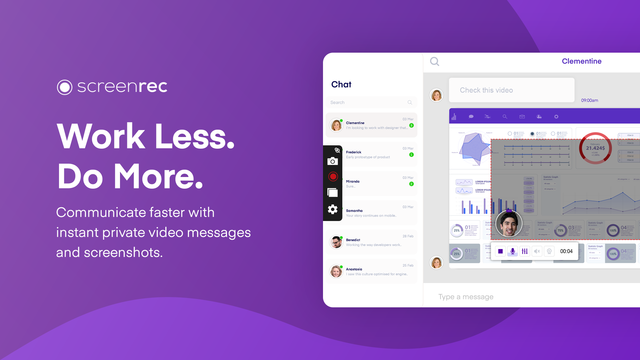
ScreenRec is a versatile screen recording tool, particularly suited for customer support teams. Its key features such as instant video messaging and annotated screenshot sharing expedite the communication process, making it easier for support teams to provide detailed, visual instructions or demonstrations to clients, thereby enhancing support quality and efficiency.

Best for Screen Recording Tools for Customer Support

Expert Take

ScreenRec excels in providing customer support teams with tools for effective communication through visual aids. Its features like instant video messaging and annotated screenshot sharing enhance the support experience. While it lacks advanced editing tools and a mobile app, its cost-effectiveness and ease of use make it a strong contender in its category.
Pros

  • Instant video messaging
  • Annotated screenshot sharing
  • Easy-to-use interface
  • No watermarks
  • Unlimited recording time

Cons

  • Limited editing tools
  • Dependent on internet connection for sharing files
  • No mobile app

Best for teams that are

  • Budget-conscious users needing unlimited free recording time without watermarks
  • Teams requiring secure, encrypted video sharing for internal communication
  • Users who need a lightweight tool for quick bug reporting

Skip if

  • Creators needing video editing features like trimming or zooming
  • Users who require high frame-rate recording for gaming
  • Professionals needing polished, branded video presentations

Best for teams that are

  • Budget-conscious users needing unlimited free recording time without watermarks
  • Teams requiring secure, encrypted video sharing for internal communication
  • Users who need a lightweight tool for quick bug reporting

Skip if

  • Creators needing video editing features like trimming or zooming
  • Users who require high frame-rate recording for gaming
  • Professionals needing polished, branded video presentations

Pros

  • Instant video messaging
  • Annotated screenshot sharing
  • Easy-to-use interface
  • No watermarks
  • Unlimited recording time

Cons

  • Limited editing tools
  • Dependent on internet connection for sharing files
  • No mobile app

Expert Take

ScreenRec excels in providing customer support teams with tools for effective communication through visual aids. Its features like instant video messaging and annotated screenshot sharing enhance the support experience. While it lacks advanced editing tools and a mobile app, its cost-effectiveness and ease of use make it a strong contender in its category.

2

ScreenPal Screen Recorder

Best for Screen Recording Tools for Training & Education

Score
9.8 / 10
ScreenPal Screen Recorder

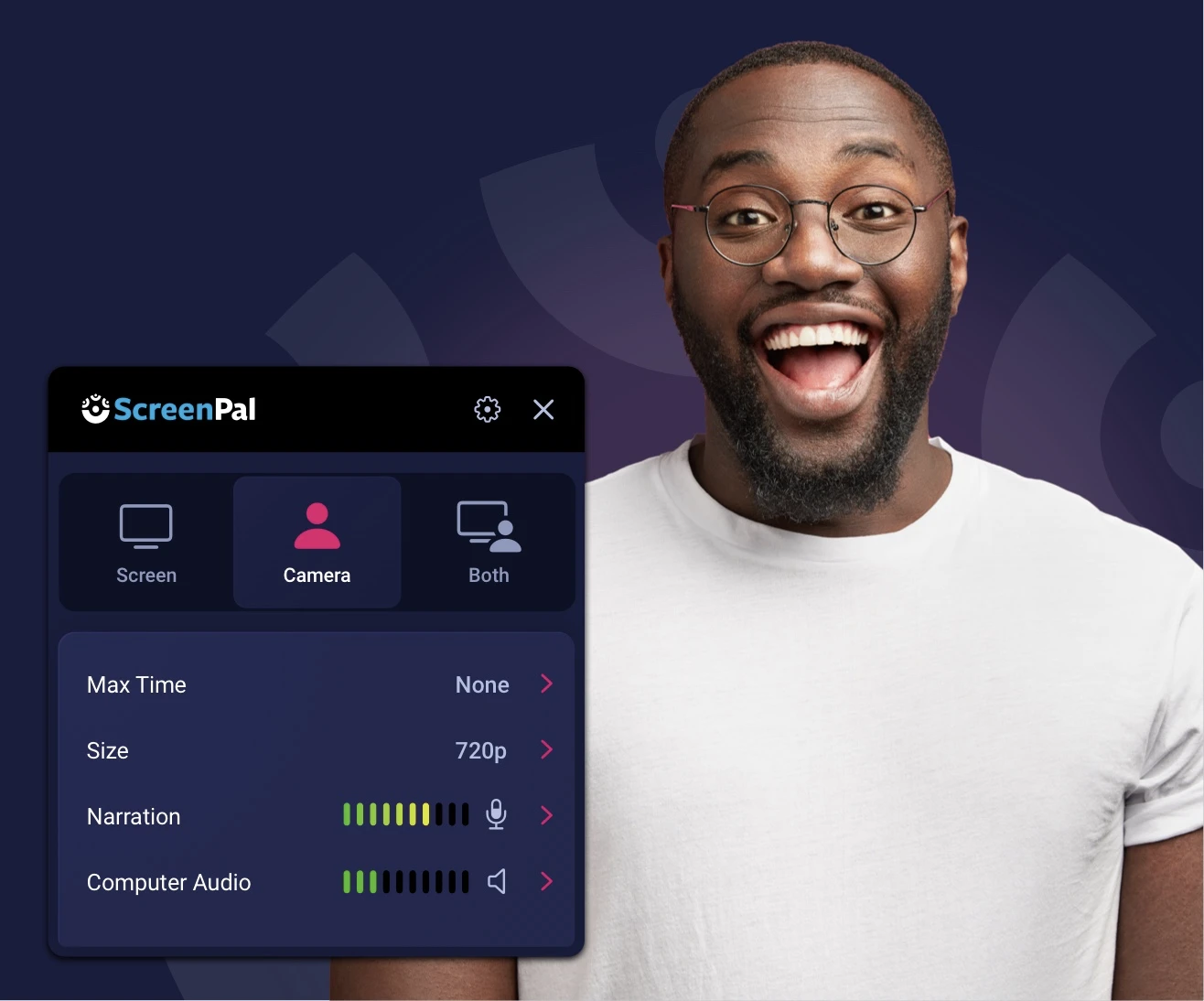
ScreenPal's screen recorder is a highly efficient tool for educators and trainers due to its intuitive and fast recording capabilities. It addresses the industry's need for effective communication of ideas, as it allows capturing of any screen area, addition of narration, and webcam use, making it an essential tool for creating tutorials or training materials.

Best for Screen Recording Tools for Training & Education

Expert Take

ScreenPal Screen Recorder is a leading tool in the screen recording category, particularly for training and education. Its intuitive interface, fast recording capabilities, and integration features make it highly effective for creating educational content. While it lacks some advanced editing features, its strengths in usability and core functionality make it a top choice.

Pros

  • Trusted by 98 of top 100 US universities
  • Certified for FERPA, COPPA, and CSPC compliance
  • Highly affordable pricing starting under $4/month
  • Seamless LTI 1.3 integration with major LMS platforms
  • Unlimited cloud storage included in free plan

Cons

  • Free plan capped at 15 minutes per recording
  • No system audio recording in free version
  • Web editor can be laggy with large projects
  • Branded video outro added to free recordings
  • Advanced editing features require paid subscription

Best for teams that are

  • Educators needing scripted recordings and hosting
  • Budget-conscious users requiring decent editing tools
  • Trainers needing to overlay webcam and screen easily

Skip if

  • Free users wanting unlimited recording time (15 min limit)
  • Creators looking for high-end motion graphics
  • Users wanting a completely watermark-free free version

Best for teams that are

  • Educators needing scripted recordings and hosting
  • Budget-conscious users requiring decent editing tools
  • Trainers needing to overlay webcam and screen easily

Skip if

  • Free users wanting unlimited recording time (15 min limit)
  • Creators looking for high-end motion graphics
  • Users wanting a completely watermark-free free version

Pros

  • Trusted by 98 of top 100 US universities
  • Certified for FERPA, COPPA, and CSPC compliance
  • Highly affordable pricing starting under $4/month
  • Seamless LTI 1.3 integration with major LMS platforms
  • Unlimited cloud storage included in free plan

Cons

  • Free plan capped at 15 minutes per recording
  • No system audio recording in free version
  • Web editor can be laggy with large projects
  • Branded video outro added to free recordings
  • Advanced editing features require paid subscription

Expert Take

ScreenPal Screen Recorder is a leading tool in the screen recording category, particularly for training and education. Its intuitive interface, fast recording capabilities, and integration features make it highly effective for creating educational content. While it lacks some advanced editing features, its strengths in usability and core functionality make it a top choice.

3

ScreenPal Screen Recorder

Best for Screen Recording Tools for Customer Support

Score
9.8 / 10
ScreenPal Screen Recorder

ScreenPal is a highly intuitive SaaS tool designed specifically for customer support in various industries. It allows professionals to effortlessly capture, create, and share videos and images, enabling authentic and effective visual communication. Its incredible ease of use and comprehensive editing features make it perfect for creating customer support resources, tutorials, and demonstrations.

Best for Screen Recording Tools for Customer Support

Expert Take

ScreenPal Screen Recorder is a leading tool in the screen recording category, particularly for customer support. It excels in usability and offers comprehensive editing features, making it an excellent choice for creating support materials. Its market credibility is supported by its intuitive design and affordable pricing.
Pros

  • Highly affordable paid plans ($3-4/mo)
  • FERPA & COPPA certified for education
  • Intuitive, lightweight interface
  • Deep LMS & Zoom integrations
  • No account required for free recorder

Cons

  • 15-minute limit on free recordings
  • No system audio in free version
  • Slow export for large files
  • Advanced editing requires paid plan
  • Branded outro on free exports

Best for teams that are

  • Educators and trainers creating scripted tutorials or course content
  • Users needing affordable video editing, hosting, and quizzing in one platform
  • Teams requiring speech-to-text captions and scripted recordings

Skip if

  • Enterprise support teams needing automated agent monitoring
  • Users wanting the fastest possible 'record & share' workflow without editing
  • Teams needing deep integration with support ticket systems

Best for teams that are

  • Educators and trainers creating scripted tutorials or course content
  • Users needing affordable video editing, hosting, and quizzing in one platform
  • Teams requiring speech-to-text captions and scripted recordings

Skip if

  • Enterprise support teams needing automated agent monitoring
  • Users wanting the fastest possible 'record & share' workflow without editing
  • Teams needing deep integration with support ticket systems

Pros

  • Highly affordable paid plans ($3-4/mo)
  • FERPA & COPPA certified for education
  • Intuitive, lightweight interface
  • Deep LMS & Zoom integrations
  • No account required for free recorder

Cons

  • 15-minute limit on free recordings
  • No system audio in free version
  • Slow export for large files
  • Advanced editing requires paid plan
  • Branded outro on free exports

Expert Take

ScreenPal Screen Recorder is a leading tool in the screen recording category, particularly for customer support. It excels in usability and offers comprehensive editing features, making it an excellent choice for creating support materials. Its market credibility is supported by its intuitive design and affordable pricing.

4
Score
9.8 / 10
4
9.8 / 10
Screen Studio

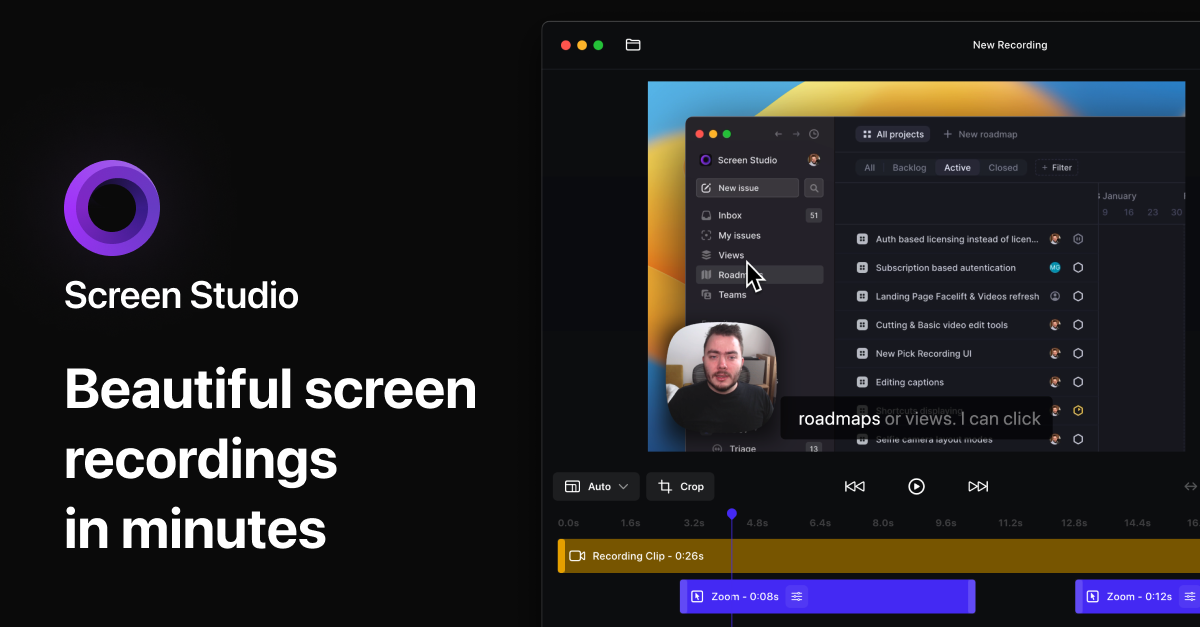
Screen Studio is a robust tool for creating product demo videos, ideal for professionals in the SaaS industry. It simplifies the process of recording and producing high-quality videos of products and services, making it easy to showcase features and functionalities to potential customers. Its intuitive interface and advanced features cater specifically to the needs of SaaS businesses.

Best for Screen Recording Tools for Product Demos

Expert Take

Screen Studio excels as a specialized tool for creating product demo videos, offering advanced features tailored to SaaS businesses. Its intuitive interface and affordable pricing enhance its appeal, while third-party recognition supports its credibility in the market.

Pros

  • Automated cinematic motion blur and zoom
  • Smooths cursor movement automatically
  • Exports in 4K 60fps quality
  • Native macOS interface and performance
  • Records iOS devices via USB

Cons

  • No Windows or Linux version available
  • Export process occasionally gets stuck
  • No advanced audio editing tools
  • Affordable lifetime license was discontinued
  • Limited multi-clip editing capabilities

Best for teams that are

  • macOS users creating high-quality, cinematic product demos
  • Marketers wanting "Apple-style" videos with auto-zoom

Skip if

  • Windows or Linux users (macOS exclusive)
  • Users needing a free tool or low-cost subscription

Best for teams that are

  • macOS users creating high-quality, cinematic product demos
  • Marketers wanting "Apple-style" videos with auto-zoom

Skip if

  • Windows or Linux users (macOS exclusive)
  • Users needing a free tool or low-cost subscription

Pros

  • Automated cinematic motion blur and zoom
  • Smooths cursor movement automatically
  • Exports in 4K 60fps quality
  • Native macOS interface and performance
  • Records iOS devices via USB

Cons

  • No Windows or Linux version available
  • Export process occasionally gets stuck
  • No advanced audio editing tools
  • Affordable lifetime license was discontinued
  • Limited multi-clip editing capabilities

Expert Take

Screen Studio excels as a specialized tool for creating product demo videos, offering advanced features tailored to SaaS businesses. Its intuitive interface and affordable pricing enhance its appeal, while third-party recognition supports its credibility in the market.

5

Jam: Bug-Free Product Development

Best for Screen Recording Tools for QA & Bug Reporting

Score
9.8 / 10
Jam: Bug-Free Product Development

Jam is a sleek Screen Recording Tool for QA & Bug Reporting that revolutionizes the bug reporting process. It empowers professionals in the creative and digital media industry by offering an intuitive, fast, and efficient way of reporting bugs. Simply take a screenshot, annotate it with your comment, and share it with your team in seconds.

Best for Screen Recording Tools for QA & Bug Reporting

Expert Take

Jam excels in providing a streamlined bug reporting process tailored for QA and bug reporting in creative industries. Its integration capabilities and user-friendly design make it a standout choice, though the free plan's limitations and reliance on internet connectivity are noted tradeoffs.

Pros

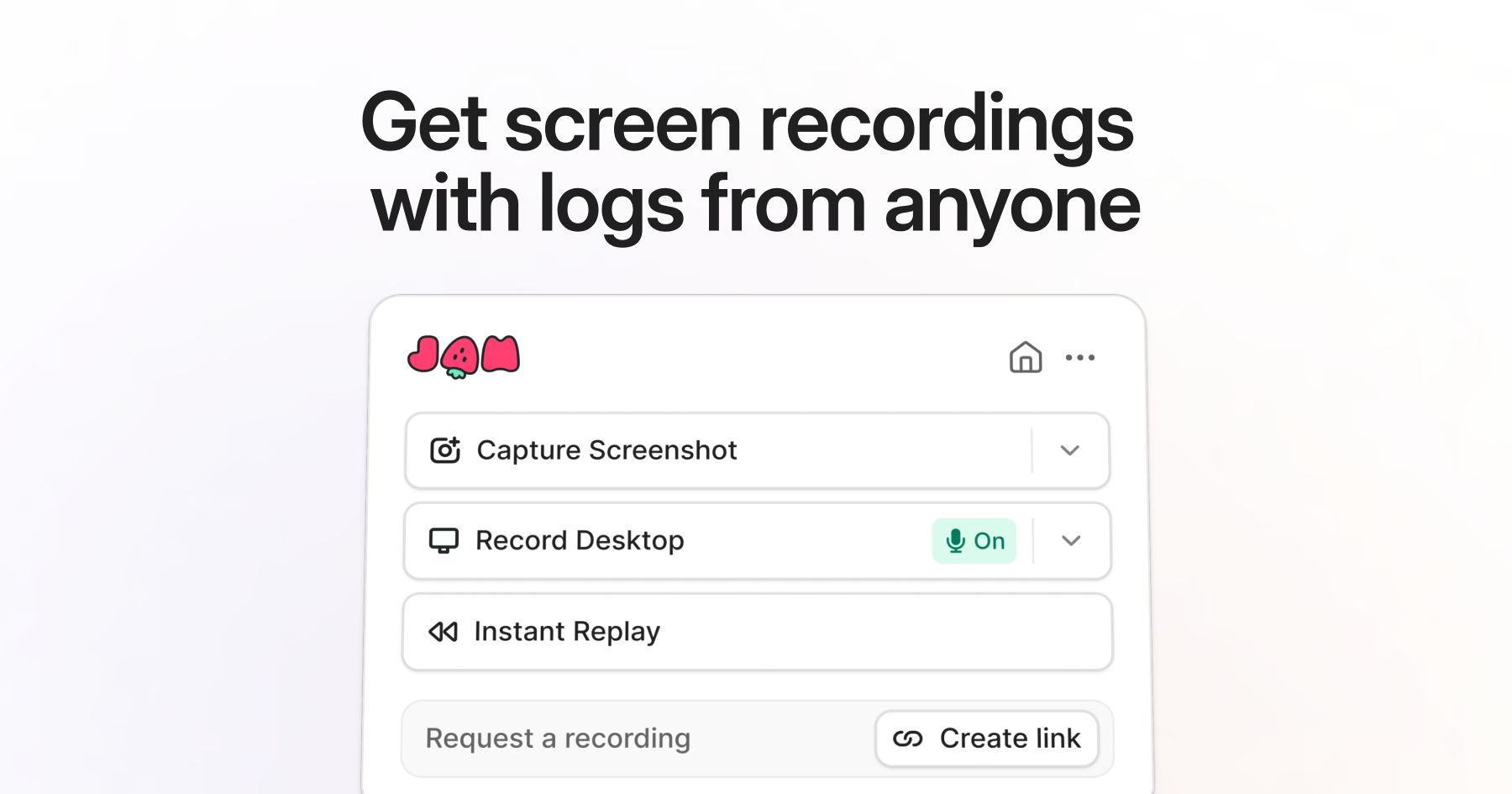
  • Auto-captures console logs & network requests
  • Instant Replay captures bugs retroactively
  • Seamless integrations with Jira & Linear
  • SOC 2 Type II compliant security
  • Generous free plan for individuals

Cons

  • No Safari browser extension support
  • No Android mobile app available
  • Free plan limited to 5-minute recordings
  • Instant Replay buffer limited to 2 minutes

Best for teams that are

  • Product managers and QA reporting bugs to engineers
  • Teams using Jira, Linear, or Asana for issue tracking
  • Non-technical users needing to auto-capture technical logs

Skip if

  • Users needing a standalone desktop application
  • Teams requiring support for non-Chromium browsers (Safari/Firefox)
  • Users looking for advanced video editing capabilities

Best for teams that are

  • Product managers and QA reporting bugs to engineers
  • Teams using Jira, Linear, or Asana for issue tracking
  • Non-technical users needing to auto-capture technical logs

Skip if

  • Users needing a standalone desktop application
  • Teams requiring support for non-Chromium browsers (Safari/Firefox)
  • Users looking for advanced video editing capabilities

Pros

  • Auto-captures console logs & network requests
  • Instant Replay captures bugs retroactively
  • Seamless integrations with Jira & Linear
  • SOC 2 Type II compliant security
  • Generous free plan for individuals

Cons

  • No Safari browser extension support
  • No Android mobile app available
  • Free plan limited to 5-minute recordings
  • Instant Replay buffer limited to 2 minutes

Expert Take

Jam excels in providing a streamlined bug reporting process tailored for QA and bug reporting in creative industries. Its integration capabilities and user-friendly design make it a standout choice, though the free plan's limitations and reliance on internet connectivity are noted tradeoffs.

6

Loom Free Screen Recorder

Best for Screen Recording Tools for Product Demos

Score
9.8 / 10
Loom Free Screen Recorder

Loom's Free Screen Recorder is an ideal tool for product demos in the SaaS industry. Its feature-rich platform enables seamless screen and audio capture across various devices, aiding professionals in creating highly effective and clear product demonstrations. The software's multi-platform support is critical for product demos, as it allows recording from any device, ensuring comprehensive and flexible demo creation.

Best for Screen Recording Tools for Product Demos

Expert Take

Loom Free Screen Recorder excels in providing a versatile and user-friendly platform for creating product demos. Its multi-platform support and integrated editing tools enhance its utility, making it a preferred choice for professionals. The product's credibility is supported by its widespread adoption and positive industry recognition.

Pros

  • Instant link generation immediately after recording
  • Deep integration with Slack, Jira, and Confluence
  • Unlimited screenshots on the free plan
  • Transcriptions available in 50+ languages
  • SOC 2 Type 2 enterprise-grade security

Cons

  • Strict 5-minute recording limit per video
  • Maximum storage of 25 videos on free plan
  • No video downloads allowed on free plan
  • Recording quality capped at 720p resolution
  • Must delete old videos to record new ones

Best for teams that are

  • Teams needing quick, asynchronous video messaging
  • Users wanting instant link sharing without rendering time

Skip if

  • Creators needing high-production value or advanced editing
  • Free users recording videos longer than 5 minutes

Best for teams that are

  • Teams needing quick, asynchronous video messaging
  • Users wanting instant link sharing without rendering time

Skip if

  • Creators needing high-production value or advanced editing
  • Free users recording videos longer than 5 minutes

Pros

  • Instant link generation immediately after recording
  • Deep integration with Slack, Jira, and Confluence
  • Unlimited screenshots on the free plan
  • Transcriptions available in 50+ languages
  • SOC 2 Type 2 enterprise-grade security

Cons

  • Strict 5-minute recording limit per video
  • Maximum storage of 25 videos on free plan
  • No video downloads allowed on free plan
  • Recording quality capped at 720p resolution
  • Must delete old videos to record new ones

Expert Take

Loom Free Screen Recorder excels in providing a versatile and user-friendly platform for creating product demos. Its multi-platform support and integrated editing tools enhance its utility, making it a preferred choice for professionals. The product's credibility is supported by its widespread adoption and positive industry recognition.

7

Rally Screen Recorder

Best for Screen Recording Tools for Product Demos

Score
9.7 / 10
Rally Screen Recorder

Rally is a screen recording solution designed specifically for capturing product demos. It addresses the needs of industry professionals by offering separate content, narration, and cursor tracks allowing easy changes, making it ideal for product developers, marketers, and educators.

Best for Screen Recording Tools for Product Demos

Expert Take

Rally Screen Recorder excels in providing a specialized tool for product demos with unique features like separate content, narration, and cursor tracks. While it offers flexibility and ease of use, its market credibility is limited by the absence of third-party validation.

Pros

  • Modular editing allows swapping clips without re-recording
  • Separate tracks for audio, video, and cursor
  • Supports multiple presenters in one video
  • Updates don't break existing share links
  • Slide-deck style interface is intuitive

Cons

  • Desktop app is macOS only
  • Free plan limited to 720p resolution
  • No API support currently available
  • 10-minute limit on free stories
  • Newer ecosystem than Loom or Camtasia

Best for teams that are

  • GTM teams needing modular demos that are easy to update
  • Teams wanting to collaborate with multiple presenters in one video

Skip if

  • Casual users just needing a simple, one-off screen capture
  • Creators looking for advanced creative video editing effects

Best for teams that are

  • GTM teams needing modular demos that are easy to update
  • Teams wanting to collaborate with multiple presenters in one video

Skip if

  • Casual users just needing a simple, one-off screen capture
  • Creators looking for advanced creative video editing effects

Pros

  • Modular editing allows swapping clips without re-recording
  • Separate tracks for audio, video, and cursor
  • Supports multiple presenters in one video
  • Updates don't break existing share links
  • Slide-deck style interface is intuitive

Cons

  • Desktop app is macOS only
  • Free plan limited to 720p resolution
  • No API support currently available
  • 10-minute limit on free stories
  • Newer ecosystem than Loom or Camtasia

Expert Take

Rally Screen Recorder excels in providing a specialized tool for product demos with unique features like separate content, narration, and cursor tracks. While it offers flexibility and ease of use, its market credibility is limited by the absence of third-party validation.

8
Score
9.7 / 10
8
9.7 / 10
Bird Eats Bug

Bird Eats Bug is a bug reporting tool that simplifies the process of creating technical bug reports, even for non-technical users. It captures screen recordings alongside valuable engineering data, making it an essential tool for QA analysts in the digital media industry where precise bug reports are critical.

Best for Screen Recording Tools for QA & Bug Reporting

Expert Take

Bird Eats Bug is recognized as a leading tool in the bug reporting domain, offering unique capabilities such as screen recording with engineering data. It is particularly valuable for QA teams in digital media, providing ease of use and efficiency. Despite some limitations, it stands out for its targeted functionality and integration capabilities.

Pros

  • Auto-captures console logs & network data
  • Acquired by BrowserStack (High Trust)
  • Seamless Jira & Linear integrations
  • Instant replay 'dashcam' feature
  • SOC 2 Type II Certified

Cons

  • High starting price ($50/mo)
  • Limited to browser-based recording
  • Free plan limited to 15 uploads
  • No cheap intermediate tier
  • Mobile app support is limited

Best for teams that are

  • Engineering teams needing detailed technical logs
  • QA testers requiring 'instant replay' of recent actions
  • Developers who need to reduce 'cannot reproduce' issues

Skip if

  • Casual users needing simple video hosting only
  • Teams with strict budget constraints (can be pricey)
  • Users who find technical dashboards overwhelming

Best for teams that are

  • Engineering teams needing detailed technical logs
  • QA testers requiring 'instant replay' of recent actions
  • Developers who need to reduce 'cannot reproduce' issues

Skip if

  • Casual users needing simple video hosting only
  • Teams with strict budget constraints (can be pricey)
  • Users who find technical dashboards overwhelming

Pros

  • Auto-captures console logs & network data
  • Acquired by BrowserStack (High Trust)
  • Seamless Jira & Linear integrations
  • Instant replay 'dashcam' feature
  • SOC 2 Type II Certified

Cons

  • High starting price ($50/mo)
  • Limited to browser-based recording
  • Free plan limited to 15 uploads
  • No cheap intermediate tier
  • Mobile app support is limited

Expert Take

Bird Eats Bug is recognized as a leading tool in the bug reporting domain, offering unique capabilities such as screen recording with engineering data. It is particularly valuable for QA teams in digital media, providing ease of use and efficiency. Despite some limitations, it stands out for its targeted functionality and integration capabilities.

9

Colossyan AI Screen Recorder

Best for Screen Recording Tools with AI Narration

Score
9.7 / 10
Colossyan AI Screen Recorder

Colossyan's AI Screen Recorder is a unique tool designed for professionals who need to create detailed, informative videos. It combines screen recording features with an AI-driven narration, making it a perfect tool for tutorials, demonstrations, and virtual presentations. Its AI-powered narration perfectly syncs with on-screen activities, providing a seamless and intuitive experience to viewers.

Best for Screen Recording Tools with AI Narration

Expert Take

Colossyan AI Screen Recorder stands out in the screen recording tools category due to its integration of AI-driven narration, which enhances the user experience by synchronizing voiceovers with on-screen activities. Its affordability and ease of use make it accessible to a wide range of professionals, while its innovative features position it as a leader in its niche.

Pros

  • AI-driven narration
  • High-quality screen recording
  • Customizable settings
  • Easy-to-use interface
  • Affordable pricing

Cons

  • Limited languages for AI narration
  • Requires good internet connection for optimal performance

Best for teams that are

  • L&D teams wanting to overlay professional AI avatars onto screen recordings.
  • Companies needing to translate training videos into multiple languages instantly.

Skip if

  • Users looking for a simple, standalone screen recorder without AI avatars.
  • Creators needing instant rendering (video generation takes time).

Best for teams that are

  • L&D teams wanting to overlay professional AI avatars onto screen recordings.
  • Companies needing to translate training videos into multiple languages instantly.

Skip if

  • Users looking for a simple, standalone screen recorder without AI avatars.
  • Creators needing instant rendering (video generation takes time).

Pros

  • AI-driven narration
  • High-quality screen recording
  • Customizable settings
  • Easy-to-use interface
  • Affordable pricing

Cons

  • Limited languages for AI narration
  • Requires good internet connection for optimal performance

Expert Take

Colossyan AI Screen Recorder stands out in the screen recording tools category due to its integration of AI-driven narration, which enhances the user experience by synchronizing voiceovers with on-screen activities. Its affordability and ease of use make it accessible to a wide range of professionals, while its innovative features position it as a leader in its niche.

10

Loom for QA & Bug Reporting

Best for Screen Recording Tools for QA & Bug Reporting

Score
9.7 / 10
Loom for QA & Bug Reporting

Loom for QA & Bug Reporting is a specialized screen recording tool designed to capture, document, and flag any bugs in software applications. Its async video feature provides clear context for bugs, making it an invaluable tool for software developers, testers, and QA professionals.

Best for Screen Recording Tools for QA & Bug Reporting

Expert Take

Loom for QA & Bug Reporting excels in providing a visual and contextual way of documenting software bugs, which is crucial for effective communication in development teams. Its multi-platform support and async video capabilities make it a versatile tool for QA professionals, despite some limitations in editing features and internet dependency.

Pros

  • AI auto-generates Jira tickets
  • Deep Atlassian/Jira integration
  • Instant video processing & sharing
  • Transcripts in 50+ languages
  • Enterprise-grade security (SSO)

Cons

  • No console/network log capture
  • 5-min limit on free plan
  • AI features cost $24/user/mo
  • Video cap (25) on free tier
  • Limited native annotation tools

Best for teams that are

  • Teams needing simple asynchronous video messaging
  • Non-technical staff providing visual context for bugs
  • Users wanting a polished, easy-to-share video library

Skip if

  • Developers requiring auto-captured console or network logs
  • QA teams needing automated environment data collection
  • Users needing a free plan with unlimited recording history

Best for teams that are

  • Teams needing simple asynchronous video messaging
  • Non-technical staff providing visual context for bugs
  • Users wanting a polished, easy-to-share video library

Skip if

  • Developers requiring auto-captured console or network logs
  • QA teams needing automated environment data collection
  • Users needing a free plan with unlimited recording history

Pros

  • AI auto-generates Jira tickets
  • Deep Atlassian/Jira integration
  • Instant video processing & sharing
  • Transcripts in 50+ languages
  • Enterprise-grade security (SSO)

Cons

  • No console/network log capture
  • 5-min limit on free plan
  • AI features cost $24/user/mo
  • Video cap (25) on free tier
  • Limited native annotation tools

Expert Take

Loom for QA & Bug Reporting excels in providing a visual and contextual way of documenting software bugs, which is crucial for effective communication in development teams. Its multi-platform support and async video capabilities make it a versatile tool for QA professionals, despite some limitations in editing features and internet dependency.

How We Rank Products

Our Evaluation Process

Products in the Screen Recording & Tutorial Creation Tools category are evaluated based on their feature sets, such as recording quality, editing tools, and output formats. Compatibility with other software and platforms is also considered, ensuring seamless integration into existing workflows. Pricing transparency and third-party customer feedback are analyzed to provide insights into cost-effectiveness and user satisfaction.

Verification

  • Products evaluated through comprehensive research and analysis of user feedback and expert opinions.
  • Rankings based on in-depth analysis of software features, user ratings, and industry comparisons.
  • Selection criteria focus on key functionalities, ease of use, and integration capabilities in screen recording tools.

Score Breakdown

0.0 / 10

About Screen Recording & Tutorial Creation Tools

What Is Screen Recording & Tutorial Creation Tools?

Screen Recording & Tutorial Creation Tools cover software used to capture, edit, and distribute visual records of on-screen activity, audio narration, and webcam feeds for the purpose of knowledge transfer, documentation, and asynchronous communication. This category spans the full content lifecycle from initial capture (pixels, metadata, and audio) to post-production (editing, annotation, AI-enhancement) and final distribution (hosting, link sharing, or embedding). It sits between Digital Adoption Platforms (DAPs)—which provide in-app guidance overlays—and Video Content Management Systems (VCMS)—which focus primarily on enterprise storage and streaming infrastructure. It includes both general-purpose desktop and cloud-based recorders as well as vertical-specific tools designed for workflows like software QA, sales prospecting, and technical documentation.

In the modern enterprise, these tools serve as the operational bridge between complex digital processes and human understanding. They are used by product managers to demonstrate features without scheduling meetings, by support agents to resolve tickets through visual proof rather than text-based back-and-forth, and by L&D teams to scale training without repetitive live sessions. As remote and hybrid work models solidify, this category has evolved from simple utility software into a critical layer of the enterprise communication stack, replacing synchronous meetings and static PDF manuals with high-fidelity, reproducible visual assets.

History

The evolution of screen recording technology traces the shift from static desktop computing to the dynamic, collaborative cloud era. In the early 1990s, the market was defined by utilities like Lotus ScreenCam (released circa 1993-1994). These early tools were engineered to solve a specific gap: the inability to demonstrate software functionality without being physically present. ScreenCam introduced the concept of "screen movies," capturing cursor movements and screen updates to create executable tutorials. However, these solutions were strictly local, proprietary, and plagued by large file sizes that made distribution via physical media or early intranets cumbersome.

The 2000s marked the "Desktop Authoring" era. As internet bandwidth improved, tools emerged that allowed for non-linear editing, multi-track audio, and export to standardized formats like Flash (SWF) and later AVI/MP4. This period saw the rise of heavy-duty desktop applications designed for instructional designers and technical writers. The focus was on high-fidelity production values—zoom-and-pan effects, callouts, and cursor smoothing—transforming screen capture into a post-production workflow similar to video editing. However, the workflow remained siloed: record locally, edit locally, render locally, and then upload to a separate server.

The 2010s disrupted this model with the advent of "Vertical SaaS" and cloud-native recording. The gap that drove this innovation was the inefficiency of the render-and-upload cycle in a fast-paced agile environment. Browser-based extensions and cloud-first platforms eliminated the rendering step, generating instant shareable links immediately after recording. This shifted the buyer expectation from "give me a video editor" to "give me instant communication." This era also saw the category bifurcate: sales teams adopted video for prospecting, while engineering teams adopted specialized recorders that captured code-level metadata alongside video.

By the 2020s, the market entered its current "Intelligence and Automation" phase. Consolidation waves saw large collaboration platforms and enterprise service management vendors acquiring standalone video tools to integrate asynchronous communication directly into ticketing and project management workflows. Today, the expectation has evolved again: buyers no longer just want a video file; they demand "actionable intelligence"—tools that automatically transcribe audio, generate step-by-step written documentation from a video, and use AI to redact sensitive data or synthesize voiceovers, fundamentally blurring the line between video creation and document generation.

What To Look For

Evaluating Screen Recording & Tutorial Creation Tools requires moving beyond basic capture capabilities—which are now commoditized—and focusing on workflow fit, metadata intelligence, and enterprise governance. The most critical evaluation criterion is the time-to-value ratio for the content creator. Buyers must assess how many steps exist between hitting "stop" and sharing a finished, compliant asset. Tools that require manual uploading, rendering, or extensive post-production for simple tasks often fail to achieve adoption in fast-paced teams.

Red flags in this category often appear in data handling and proprietary lock-in. Be wary of vendors that do not offer clear data retention policies or bulk export capabilities. A significant warning sign is a lack of granular privacy controls; if a tool defaults to making all recordings public or organization-wide without requiring specific user permissions, it poses a severe security risk. Additionally, avoid tools that rely heavily on proprietary file formats for editing, as this creates a dependency that makes future migration effectively impossible.

When vetting vendors, buyers should ask specific, probing questions regarding infrastructure and AI usage. Key questions include: "Does the platform process video, audio, and metadata (like DOM elements or console logs) on-device or in the cloud?" and "If AI is used for transcription or summarization, is customer data used to train your public models?" Furthermore, ask about the "staleness" lifecycle: "What automated mechanisms exist to flag, archive, or delete video content that has not been viewed in 6 months?" Effective lifecycle management is essential to prevent storage bloat and reduce the attack surface of outdated internal information.

Industry-Specific Use Cases

Retail & E-commerce

In the retail and e-commerce sector, screen recording tools are pivotal for reducing return rates and streamlining customer support. High-velocity support teams use these tools to request screen captures from customers to diagnose issues with checkout processes or account management without prolonged back-and-forth emails. A specific evaluation priority here is "zero-install" capability; retailers need tools that allow customers to record their screens via a simple browser link without downloading software.

Unique considerations for this industry involve handling PCI (Payment Card Industry) data. Tools selected for retail environments must have automated redaction features that can detect and blur credit card numbers or personally identifiable information (PII) on the fly. Furthermore, e-commerce merchandising teams use these tools to record competitor pricing and layout changes, requiring time-stamped, verifiable archival capabilities to track market trends over time.

Healthcare

Healthcare organizations utilize screen recording primarily for Electronic Health Record (EHR) training and compliance documentation. The specific need is to train clinical staff on complex software workflows without using live patient data. Evaluation priorities focus heavily on HIPAA compliance and the ability to sanitize recordings. Healthcare buyers must look for tools that offer "synthetic data replacement" or robust blurring to ensure no Protected Health Information (PHI) is inadvertently captured in training tutorials.

A unique consideration is the audit trail. In healthcare, it is often necessary to prove that a staff member watched a specific compliance tutorial. Therefore, screen recording tools must integrate deeply with Learning Management Systems (LMS) to pass back granular viewing data—not just "completed," but duration watched and engagement heatmaps—to satisfy regulatory training requirements.

Financial Services

Financial services firms deploy screen recording tools for "interaction verification" and rigorous audit compliance. Unlike other sectors where editing is a feature, in finance, the ability to produce an unaltered, tamper-evident record of a screen interaction (e.g., a trader executing a transaction or an advisor presenting a portfolio) is paramount. Evaluation priorities center on immutable storage (WORM compliance—Write Once, Read Many) and role-based access control (RBAC).

Unique considerations include FINRA and SEC regulations regarding electronic communications. Tools must support "legal hold" workflows where specific recordings can be locked and preserved indefinitely during investigations. Additionally, financial buyers often require on-premise or private cloud deployment options to ensure sensitive financial data never traverses public internet infrastructure.

Manufacturing

Manufacturing and industrial sectors use screen recording to bridge the gap between digital engineering (CAD/CAM) and shop floor execution. A critical workflow involves recording "digital twin" simulations or 3D model manipulations to create visual Standard Operating Procedures (SOPs) for assembly line workers. Evaluation priorities include support for high-frame-rate recording to capture detailed animations without lag and mobile-responsive playback for viewing on tablets in the factory.

A unique consideration is offline accessibility. Factory floors often have intermittent internet connectivity. Therefore, the chosen tools must allow for offline recording and viewing, with synchronization occurring once connectivity is restored. Furthermore, these tools often need to integrate with Manufacturing Execution Systems (MES) to link video instructions directly to specific work orders.

Professional Services

Agencies, consultancies, and legal firms use screen recording for asynchronous client reporting and "billable" transparency. Instead of scheduling a synchronous meeting to walk through a monthly analytics report or a contract review, consultants record a video walkthrough. The specific need is for high-polish, branded experiences that reinforce the firm's professionalism. Evaluation priorities include "white-labeling" capabilities—custom domains, branded video players, and the removal of vendor watermarks.

Unique considerations involve client-side security and expiration. Professional services firms need to share sensitive strategic documents via video links that can be password-protected, restricted to specific email domains, and set to auto-expire after a project concludes. Analytics are also crucial here; consultants need to know exactly when a client viewed a proposal video to time their follow-up effectively.

Subcategory Overview

Screen Recording Tools for Product Demos This niche caters to product marketers and sales engineering teams who need to create polished, high-fidelity assets that represent the brand. Unlike generic tools, software in this category emphasizes post-production quality, offering features like cursor smoothing, automatic zoom-and-pan, and the ability to swap out backgrounds or re-record audio segments without re-doing the video. A workflow that ONLY this specialized tool handles well is "synthetic editing," where the underlying HTML of a recorded web page can be modified post-capture to correct typos or change numbers, ensuring the demo looks perfect. The pain point driving buyers here is the "amateur aesthetic" of raw screen grabs; general tools often produce shaky, unpolished videos that damage brand perception during high-stakes sales cycles. For a deeper analysis of these features, read our guide to Screen Recording Tools for Product Demos.

Screen Recording Tools for Training & Education Designed for instructional designers and L&D professionals, this subcategory focuses on interactivity and assessment. What makes this niche genuinely different is the "layering" of pedagogical elements—quizzes, hotspots, and branching pathways—directly onto the video timeline. A workflow unique to this category is SCORM/xAPI packaging, where the video output is wrapped in a standardized format that reports learner progress directly to an LMS. Buyers move away from general tools toward this niche because of the "passive consumption" problem; general videos do not verify understanding, whereas these tools enforce engagement through mandatory interactions. Explore more in our breakdown of Screen Recording Tools for Training & Education.

Screen Recording Tools for Customer Support This subcategory is built for speed and integration, serving support agents and customer success managers. The differentiating factor is "workflow embeddedness"—these tools live inside ticketing systems (like Zendesk or Intercom) and generate videos that unfurl directly within chat windows. A unique workflow is the "request a recording" feature, where an agent sends a magic link to a customer, allowing the customer to record their screen without installing software, with the video automatically attaching to the support ticket. The pain point driving adoption here is "ticket ping-pong"—the endless back-and-forth text exchanges required to explain visual issues, which general tools fail to streamline effectively. Learn more about these efficiencies in our article on Screen Recording Tools for Customer Support.

Screen Recording Tools for QA & Bug Reporting Targeting developers and QA engineers, these tools are fundamentally different because they capture "under-the-hood" technical data alongside the video. A workflow that ONLY this specialized tool handles well is "instant replay with metadata," where a recording of a bug automatically captures the browser console logs, network requests, and environment details synchronized with the video frames. Buyers abandon general tools for this niche because a video alone is often insufficient to reproduce a bug; developers need the code-level context that general recorders strip away. Detailed comparisons are available in our guide to Screen Recording Tools for QA & Bug Reporting.

Screen Recording Tools with AI Narration This emerging niche serves global teams and documentation specialists who need to scale content across languages. The genuine differentiator is the decoupling of visual action from audio input; the software generates voiceovers from text scripts using synthetic speech. A unique workflow is "multilingual localization," where a single screen recording can be republished with native-sounding narration in 20+ languages instantly, without re-recording the source video. The specific pain point driving buyers here is the "maintenance burden"—updating a traditional video requires re-recording the human voiceover, whereas these tools allow updates via simple text edits. Read about this technology in Screen Recording Tools with AI Narration.

Integration & API Ecosystem

In the modern enterprise stack, a screen recording tool cannot exist as an island. The depth of its Integration & API ecosystem determines whether it accelerates workflows or becomes a bottleneck. Effective integration goes beyond simple "share to Slack" buttons; it requires bi-directional data synchronization where the recording tool can trigger actions in other platforms and vice versa.

According to a 2025 forecast by Gartner, "By 2028, 80% of developer productivity insight platforms will include workflow automation features," highlighting the critical need for tools to integrate seamlessly into existing engineering and support environments to drive value [1]. For a screen recording tool, this means the ability to push metadata—such as viewer engagement stats, ticket IDs, or bug logs—directly into systems of record like Salesforce, Jira, or an LMS without manual data entry.

Real-World Scenario: Consider a mid-sized professional services firm with 50 consultants using a project management tool (e.g., Asana) and a billing system. They implement a screen recording tool to provide weekly asynchronous status updates to clients. If the integration is poorly designed, the consultant must record the video, download it, upload it to a separate host, copy the link, paste it into the project task, and manually log the time in the billing system. This "swivel-chair" friction adds 10-15 minutes of non-billable administrative work per update. In a well-integrated ecosystem, the recording tool launches directly from the project task, automatically attaches the video to the client record upon completion, and triggers a webhook that logs the 5-minute duration as a billable activity in the invoicing software. The lack of this integration leads to thousands of dollars in lost billable time annually.

Security & Compliance

As screen recording tools capture sensitive internal data—from proprietary code to customer PII—security and compliance have become the primary gatekeepers for enterprise adoption. It is no longer sufficient for a vendor to simply claim encryption at rest; organizations now demand granular governance over content lifecycles and access observability.

A 2024 report by IBM on the cost of data breaches revealed that the average cost of a data breach in the healthcare industry reached nearly $9.8 million USD [2]. This statistic underscores the immense financial risk associated with unmanaged visual data. Video recordings are often "dark data"—unstructured and difficult to index—making them a prime vector for data leaks if not properly governed. Forrester analyst Alla Valente emphasizes the growing regulatory scrutiny on third-party applications, noting that organizations must know "if you're leveraging AI that is from a third party" and how that data is trained, which applies directly to AI-enabled screen recorders processing sensitive corporate video [3].

Real-World Scenario: A financial services company allows its support team to use a cloud-based screen recorder to troubleshoot client account issues. Without strict compliance controls, an agent records a session where a client's full account number and balance are visible. If the tool lacks automated PII redaction or "domain-restricted sharing," the agent might inadvertently share this link via a public channel or email. In a secure setup, the tool's DLP (Data Loss Prevention) integration would detect the numeric pattern of the account number and automatically blur it before the video is saved. Furthermore, "legal hold" policies would ensure that this specific interaction is preserved in a WORM (Write Once, Read Many) storage state for audit purposes, rather than being auto-deleted after 30 days like standard content.

Pricing Models & TCO

Understanding the Total Cost of Ownership (TCO) for screen recording tools requires navigating a complex matrix of per-seat licensing, storage overages, and feature-gating. The market has largely shifted away from perpetual licenses toward SaaS models, but the hidden costs often lie in "viewer" vs. "creator" distinctions and storage limits.

Gartner research highlights that shadow IT can account for 30% to 40% of IT spending in large enterprises, a figure that is particularly relevant to low-cost, freemium screen recording tools that individual employees expense on corporate cards, bypassing volume discounts and creating fragmented billing [4]. True TCO calculation must account for the administrative overhead of managing these disparate licenses versus a centralized enterprise agreement.

Real-World Scenario: Imagine a sales team of 25 representatives. A vendor offers a "Pro" plan at $15/user/month. On paper, the annual cost is $4,500. However, the plan caps video storage at 50 videos per user. A high-velocity sales rep might generate 50 prospect videos in a single month. Once the cap is hit, the organization is forced to upgrade to the "Business" tier at $30/user/month to unlock unlimited archiving, instantly doubling the TCO to $9,000. Furthermore, if the tool charges for "viewer" seats (e.g., managers who need to review calls for coaching but don't record), the cost creates friction where leadership is discouraged from using the platform. A savvy buyer would negotiate an "active creator" model where viewing is free and storage is pooled across the organization, rather than capped per user, smoothing out the usage spikes of top performers.

Implementation & Change Management

The success of a screen recording tool rollout is rarely determined by the software's features, but rather by the change management strategy used to encourage adoption. "shelfware"—software that is purchased but never used—is a massive risk in this category, as employees often revert to familiar habits like scheduling synchronous meetings or writing long emails.

According to McKinsey, organizations that focus on "superagency" and provide seamless integration into existing workflows see significantly higher adoption of new AI and digital tools. Their research indicates that 45% of employees believe seamless integration into existing workflows would increase their daily use of generative AI tools (which increasingly power modern screen recorders) [5]. Without a structured implementation plan that embeds the tool into the "flow of work," adoption stalls.

Real-World Scenario: A large enterprise rolls out a new screen recording platform to its 200-person customer success team to replace live onboarding calls. The IT team simply pushes the install via MDM (Mobile Device Management) and sends an email announcement. Three months later, usage is under 10%. Why? The agents were never trained on when to use the tool versus a live call, nor were they given templates for common scenarios. The "change management" failure here was ignoring the cultural shift from synchronous to asynchronous work. A successful implementation would have identified "champions" in each pod, created a library of "best practice" recordings (e.g., "The Perfect QBR Invitation"), and updated the support playbook to explicitly state: "For Tier 3 tickets, send a video response first." This operationalizes the tool, making it a required step in the process rather than an optional gadget.

Vendor Evaluation Criteria

Selecting the right vendor requires looking beyond the glossy marketing of "AI features" and scrutinizing the vendor's roadmap, stability, and support structure. In a market flooded with lightweight browser extensions, separating enterprise-grade partners from ephemeral startups is crucial for long-term viability.

Forrester emphasizes in their vendor evaluation methodologies that buyers must assess "current offering" against "strategy." For instance, in the privacy management space, they note that "privacy teams today are being asked to support connected governance... not just traditional compliance workflows" [6]. Similarly, for screen recording, the evaluation must weight the vendor's ability to support connected video workflows (integrations, APIs, AI governance) over simple capture quality.

Real-World Scenario: An L&D director at a manufacturing firm evaluates two vendors. Vendor A offers a sleek, modern interface and "viral" AI editing features but lacks a dedicated Customer Success Manager (CSM) and only offers email support. Vendor B has a slightly dated interface but provides a dedicated CSM, quarterly business reviews (QBRs), and a guaranteed 99.9% uptime SLA with financial penalties. While Vendor A's demo was impressive, the "evaluation criteria" reveals that Vendor A relies on a third-party API for its core video processing, introducing a supply chain risk. Vendor B owns its processing stack. For a mission-critical use case like safety training, where a video outage could delay factory floor onboarding, Vendor B is the superior choice despite the "boring" UI. The evaluation must prioritize infrastructure ownership and support SLAs over cosmetic innovation.

Emerging Trends and Contrarian Take

Emerging Trends (2025-2026): The screen recording category is rapidly converging with Agentic AI and Digital Adoption Platforms (DAP). We are moving away from "passive" video recording toward "active" process mining. In 2025-2026, expect tools that don't just record a video but simultaneously generate a coded script that an AI agent can execute. Gartner predicts that "by 2028, 15% of daily work decisions will be made by agentic AI," suggesting that screen recordings will serve as the "training data" for these agents rather than just content for human consumption [7]. Additionally, "Synthetic Localization" will become standard, where a single video recorded in English is automatically dubbed into Spanish, French, and Japanese with lip-syncing, eliminating the need for regional re-recording.

Contrarian Take: The standalone screen recorder is a dying asset class. Most businesses would get more ROI from downgrading their dedicated "enterprise video platform" and relying on the native recording features bundled into their collaboration suite (like Slack, Teams, or Canva) or their Digital Adoption Platform. The "premium" features that specialized vendors charge for—hosting, basic trimming, transcription—are being commoditized to zero by platform giants. In 5 years, paying for a tool that only records your screen will feel like paying for a tool that only takes screenshots. The value has shifted entirely to the workflow intelligence (what the tool does with the data), not the capture mechanism itself.

Common Mistakes

Overbuying "Pro" Features for Casual Users: Organizations frequently purchase expensive, full-suite editing licenses for employees who only need to record quick 2-minute status updates. This bloats the budget and complicates the user experience with tools they don't understand. A tiered approach—equipping a small "studio" team with high-end tools while giving the general workforce a lightweight browser extension—avoids this waste.

Ignoring "Video Rot": Companies often treat video libraries like infinite storage, failing to implement retention policies. This leads to a knowledge base filled with outdated tutorials (e.g., showing a software interface from 2021) that confuse new hires. Failing to set auto-archiving rules for content older than 12 months is a critical governance mistake.

Underestimating Bandwidth and VDI Impact: In virtual desktop infrastructure (VDI) environments (common in banking and healthcare), deploying a resource-heavy screen recorder can crash the virtual session. Buyers often skip stress-testing the tool on their specific VDI configuration (Citrix/VMware), leading to a failed rollout where the tool is technically unusable for the core workforce.

Questions to Ask in a Demo

  • On Architecture: "Is the video rendering done client-side (on the user's machine) or server-side? How does this impact CPU usage on older laptops?"
  • On AI & Data Privacy: "If we use your AI transcription or summarization features, is our proprietary audio data used to train your global LLM? Can we opt-out of this training while keeping the feature?"
  • On Searchability: "Does your search engine index the spoken words (audio) and the on-screen text (OCR) within the video? Can I search for a specific button label that appeared on screen?"
  • On Editing: "Is the editing non-destructive? If I trim a video and share it, can I later 'un-trim' it, or is the data permanently lost?"
  • On Analytics: "Can I see who watched the video (user identity) or just a raw view count? Can I export this viewing data to my BI tool via API?"

Before Signing the Contract

Final Decision Checklist:

  • Single Sign-On (SSO): Verify that SSO (SAML/Okta) is included in your tier, not gated behind an "Enterprise Plus" wall.
  • Data Portability: Confirm you can bulk export all video files and metadata (JSON/CSV) without contacting support, in case you need to switch vendors.
  • Compliance Artifacts: Obtain the latest SOC 2 Type II report and verify their sub-processors list.

Common Negotiation Points:

  • "Creator" vs. "Viewer" definitions: Ensure you are not charged for users who only watch content. Negotiate a "floating license" model for creators if usage is sporadic.
  • Storage Retention: Vendors often default to a 1-year retention policy on lower tiers. Negotiate for custom retention settings to align with your company's data governance policies (e.g., 3 years or 7 years).
  • AI Credits: If the tool uses generative AI (for voiceovers or summaries), these are often metered. Negotiate a higher monthly pool of AI credits upfront rather than paying overage fees later.

Deal-Breakers:

  • No Admin Visibility: If an admin cannot delete a video recorded by a user without logging in as that user, walk away. This is a governance nightmare when employees leave the company.
  • Lack of Domain Restrictions: If the tool cannot whitelist/blacklist specific email domains for sharing, it presents an unacceptable data leak risk.

Closing

Navigating the Screen Recording & Tutorial Creation landscape requires balancing the immediate need for speed with the long-term demands of governance and integration. The right tool should feel invisible to the creator but indispensable to the business. If you have specific questions about how these tools fit your unique stack, or if you want to challenge my take on the market's future, I invite you to reach out.

Email: albert@whatarethebest.com